Welcome to Microsoft Teams. Teams is a chat-based workspace that brings together chat, files, people, and tools in one place. This article will explain Teams and how we utilize it across Mac's Hospitality. This doesn't get rid of email. It's a compliment to your email but allows for faster communication with a group or individual.
Jump to Section
How We Utilize Teams
Our Teams are broken down in a multi tiered approach.
- Store Level Team - used for communication between all store management, DGM and operations
- Manager Level - GM's and KM's have a specific Team that is used for communication between locations, your culinary leaders and operations
- All Manager Level - used for communication between all managers from every location plus Ops, Finance, Technology, and HR. This Team will also have different Channels which we will talk about below
Getting Started
First you will need to download Teams. There are multiple ways to access Teams.
- Mobile App - Preferred method
- Desktop App - Mostly utilized by Home Office team members
- Web App - Least preferred
Teams Mobile App
The Teams Mobile app is available on iOS and Android via their respective app stores. First you'll need to download the app. Click the link below for your device type:
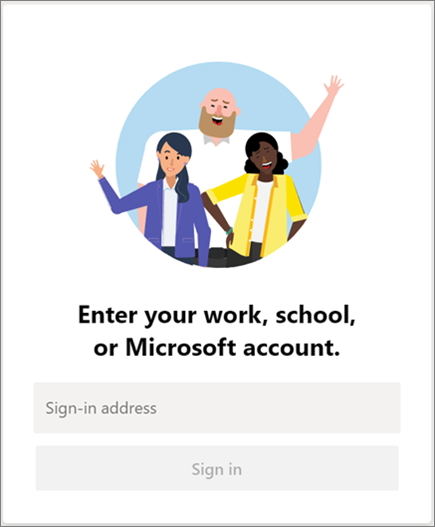
Once your app is downloaded, you'll need to login with your company email and password. After successfully logging in your screen will look similar to the one below:
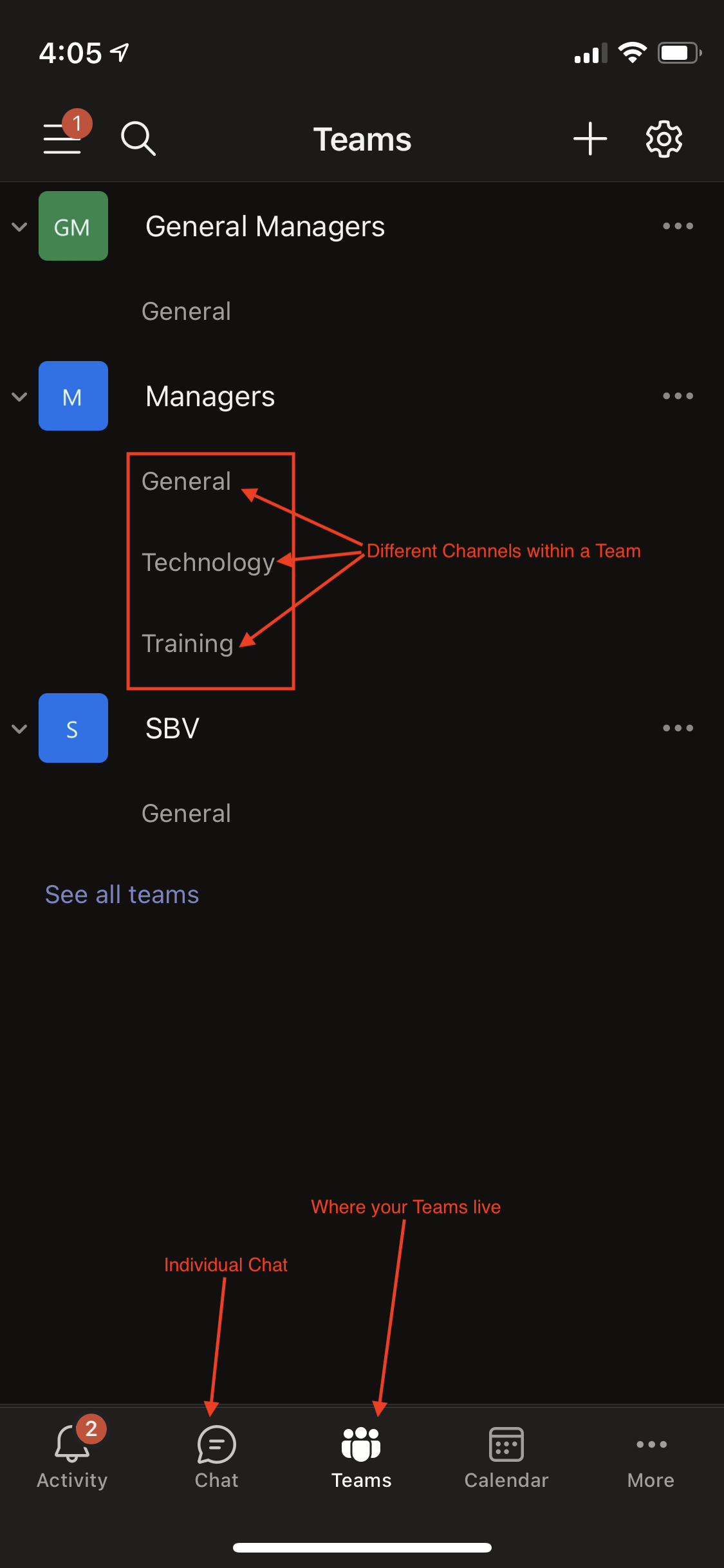
Key Components of the Teams Mobile App:
- Activity Feed - Shows all of your notifications(more on Notifications below)
- Chat - used for individual chat between users
- Teams - Team hub for communication between team members
- Calendar - Shows your Outlook calendar and any schedule events
Important Things to Know
Channels
Each Team has different Channels. Channels are sub groups of a particular Team and are used when you need to communicate on that specific subject. Got a training related question, concern or tidbit to share? Post it in the Training Channel. It's a way to organize the communication content that we all share. As our organization grows and adopts Teams more heavily our Channels will also grow. Your individual store Teams only has the General chat Channel. In the future we may add more.
Notifications
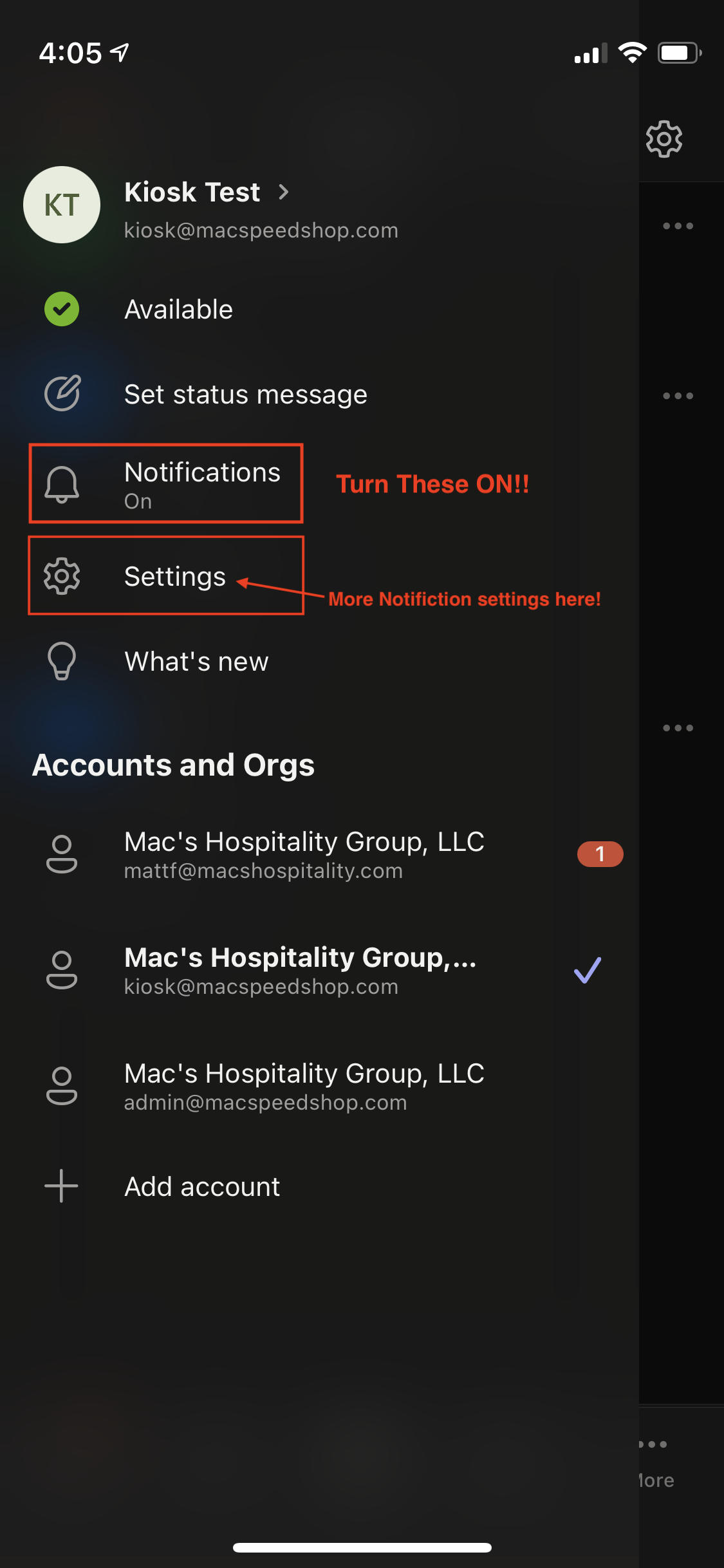
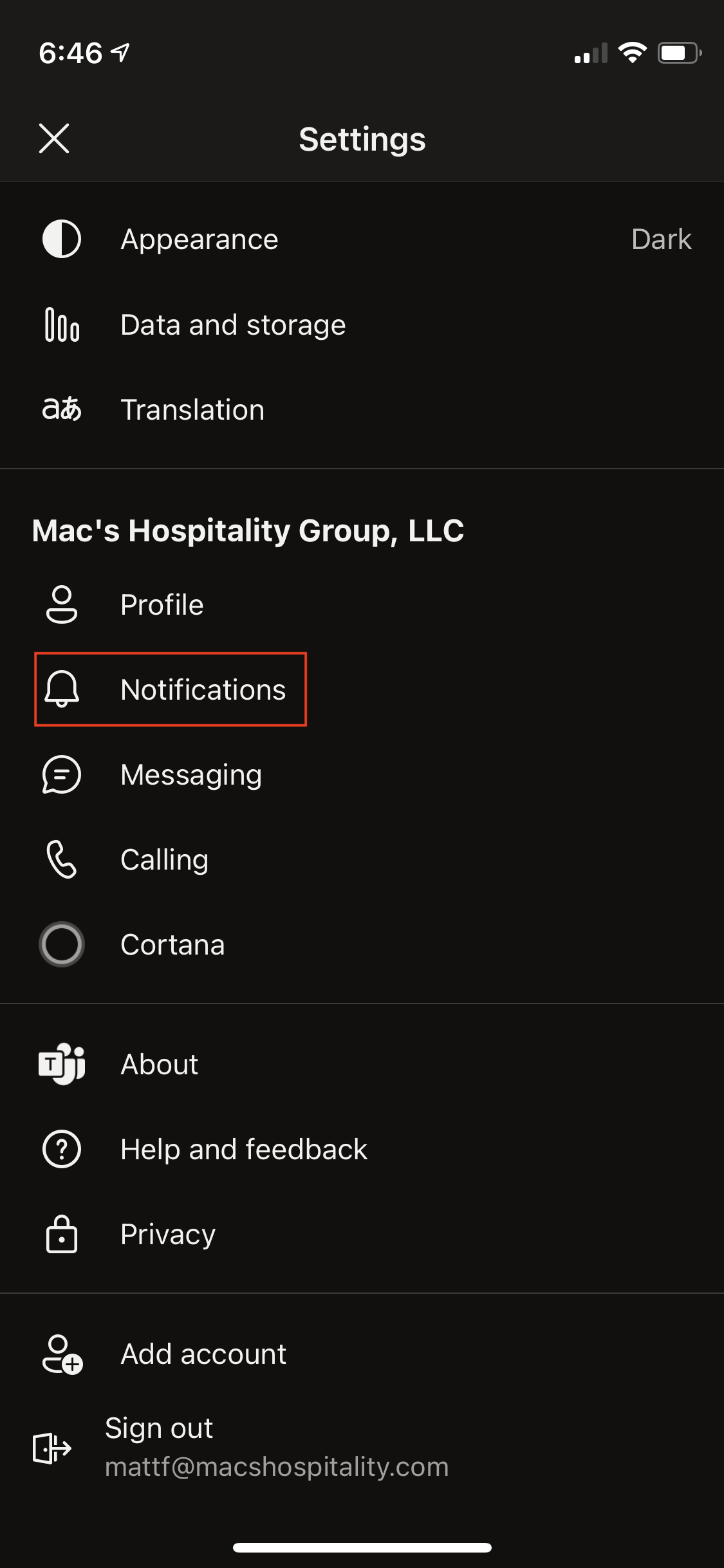
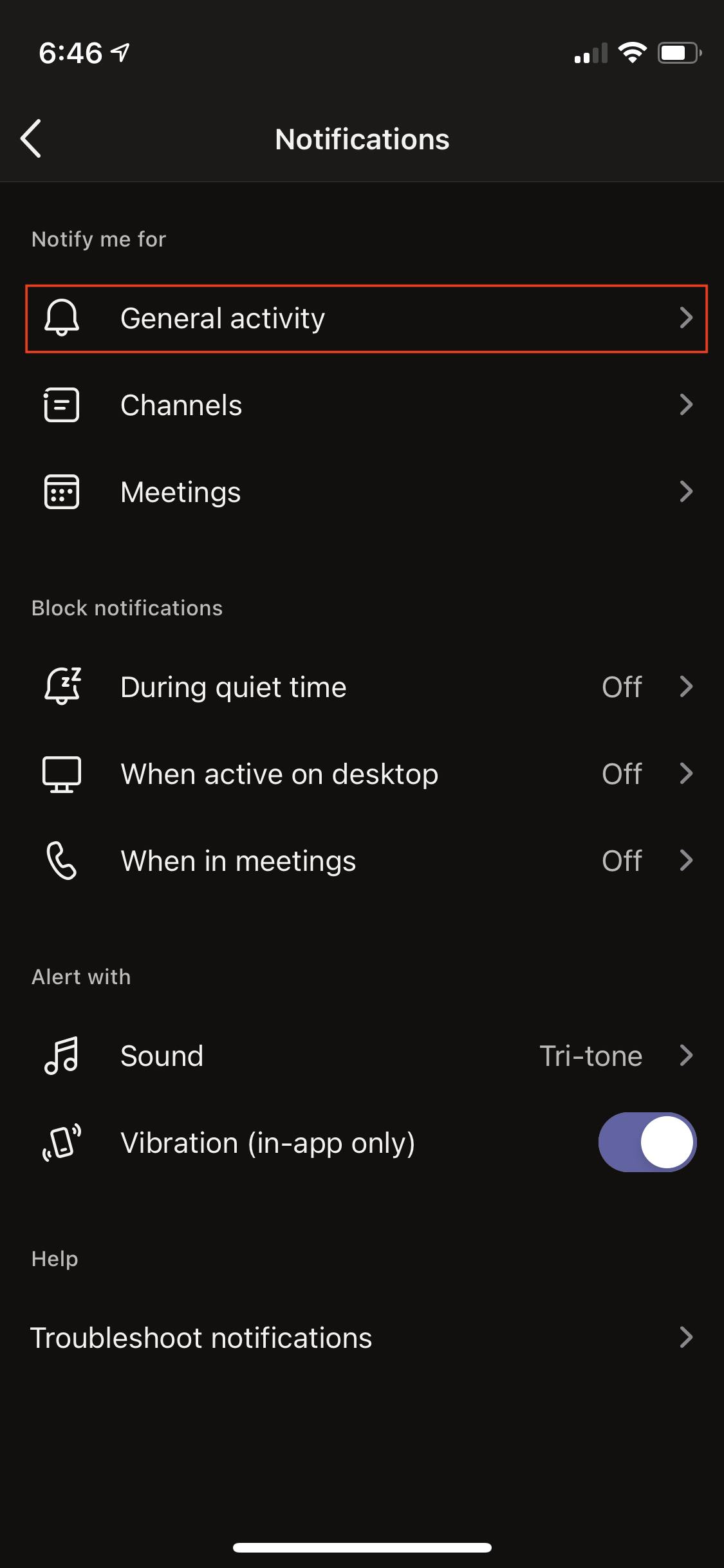
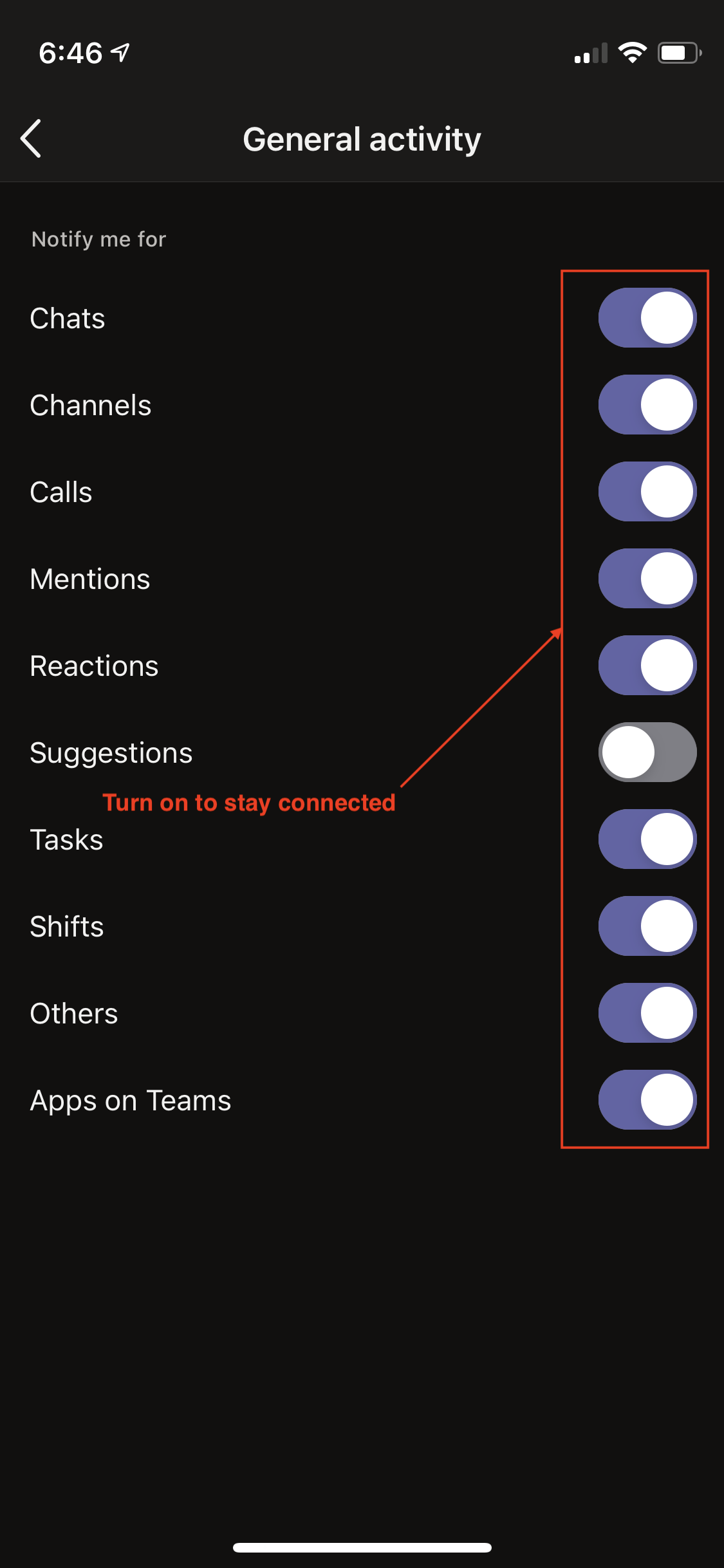
Notifications are important in knowing that someone has mentioned you in a chat or sent you a direct message. Make sure to turn your Notifications on so you don't miss any messages. When you first login to the app your device will prompt you to turn them on. If at any point you feel they have been turned off, tap the hamburger menu in the top left and you will find your notification settings in the menu bar.
Was this article helpful?
That’s Great!
Thank you for your feedback
Sorry! We couldn't be helpful
Thank you for your feedback
Feedback sent
We appreciate your effort and will try to fix the article