Every stores office PC has 2 OneDrive file locations. There is a store specific file storage location and a company wide file share.
Store Specific File Storage
The store specific file storage(OneDrive) should be used for all documents that are used for day to day operations. We recommend that you keep this file location organized and neat. These file storage locations have a large amount of allocated storage space so that you should never have issues saving a file. These are not to be used for storing personal documents or any company document with sensitive information.
Company Wide File Share(Store File Share)
Each PC also has a company wide file share that will contain important document templates from all departments. This file share is not for you to upload any documents into. You will only use this to pull down documents or templates.
Sync Issues
In some cases the OneDrive can stop synching. Your PC's will show notification when there are issues synching. If this happens, please open a support ticket. We will get it solved for you quickly.
To Access OneDrive Storage Locations:
- From your desktop PC, click the File Explorer icon in your taskbar:

- Within your File Explorer, there is a favorites menu on the left hand side. There you will find your stores file storage location and the Store Shared File drive.
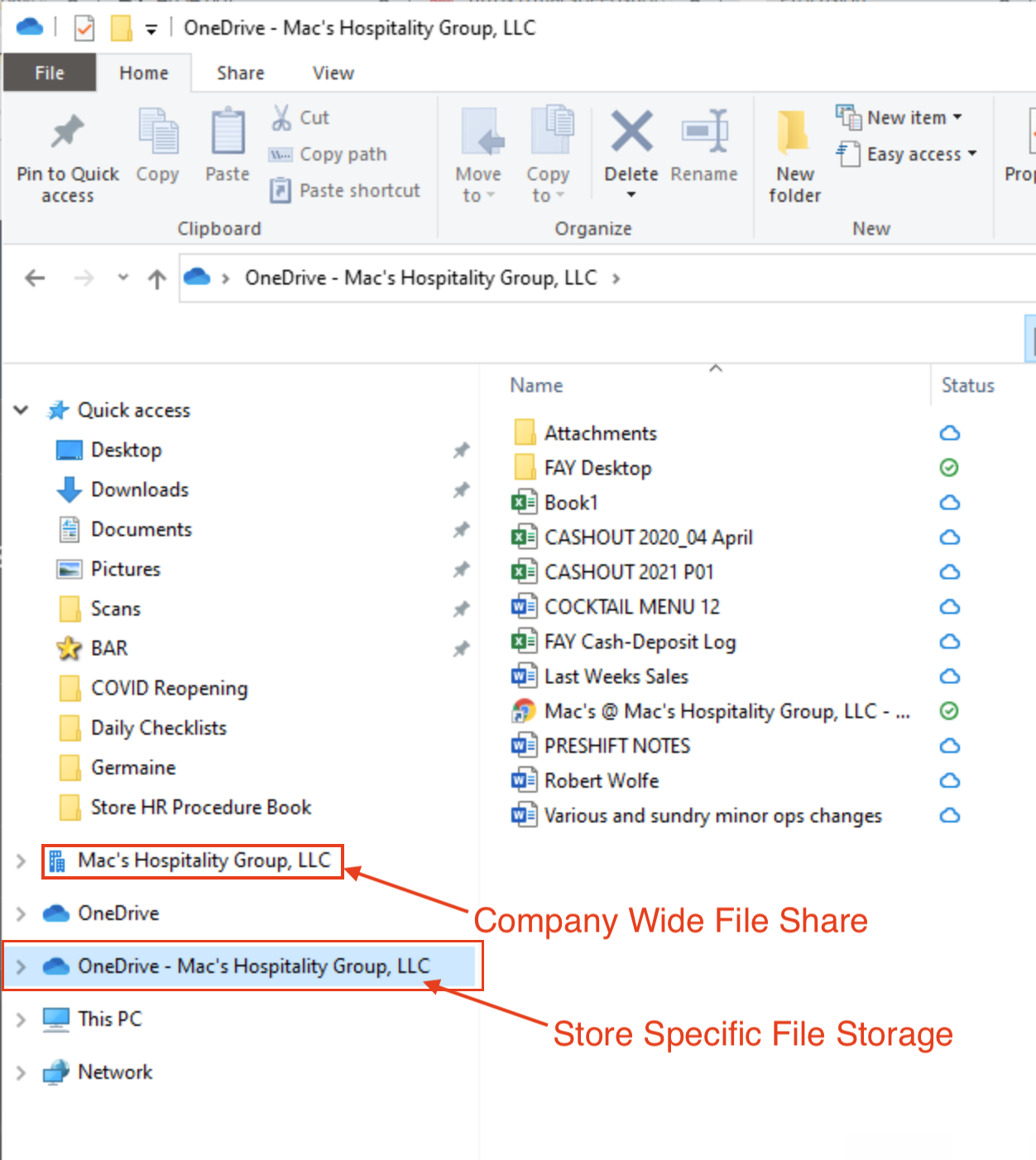
- Within the Store File Share you will see the following:
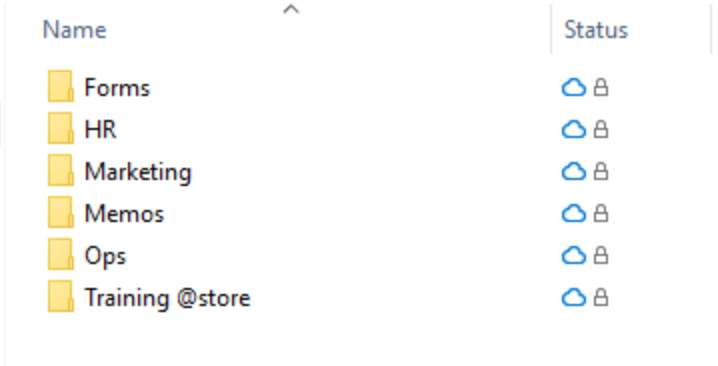
- Within the Store File Share you will see the following:
Within all of these folders, there will be documents that you can download a copy of. You will not be able to delete anything from the Store File Share. If you notice something is out of place or there is an old version of a particular file, please let that department know so that they can fix it.
Was this article helpful?
That’s Great!
Thank you for your feedback
Sorry! We couldn't be helpful
Thank you for your feedback
Feedback sent
We appreciate your effort and will try to fix the article