This doc will explain how to add to the Kitchen Tip to the guest order and how to find this value at the end of a shift and/or close of a business day.
On the guest receipt there will be a line for Kitchen Tip. This is just like our donations line on the guest receipt except we will be adding this to the check total in a different way.
The Kitchen Tip option is under the Service Charges button within an order:
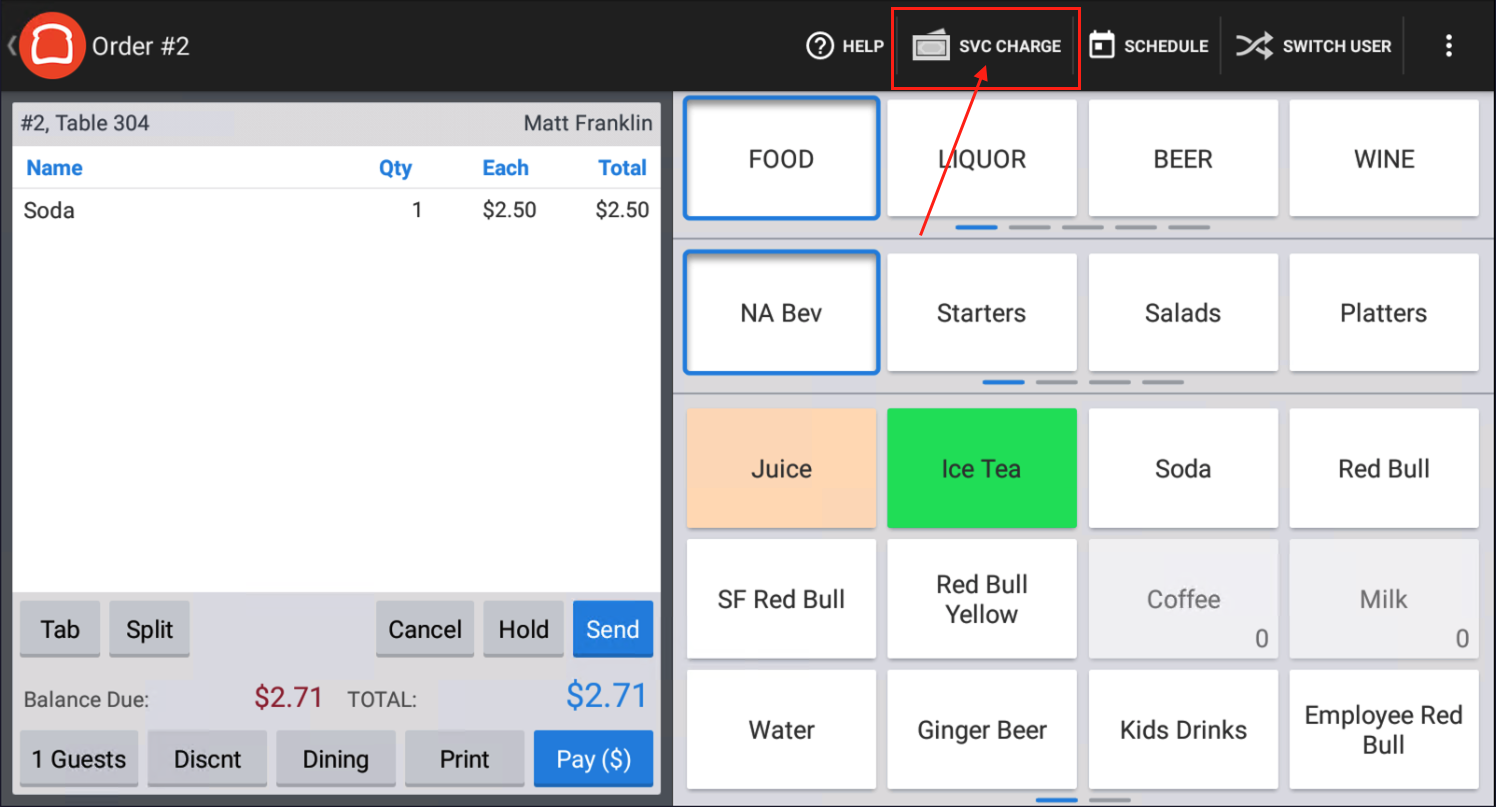
By selecting SVC Charge button, you will be prompted to add the specific service charge. For this we are using the one labeled "Kitchen Tip". This is an open charge and the team member will add the amount that the customer requested on their receipt.
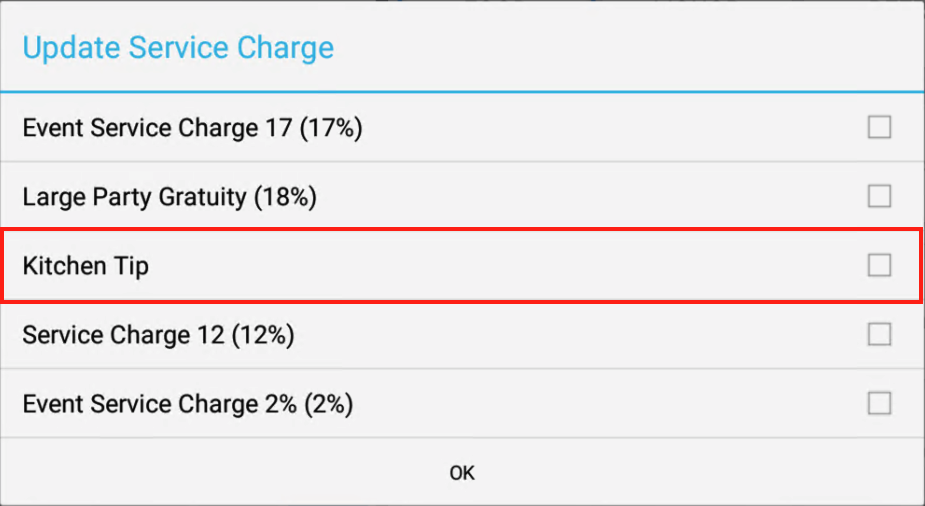
After the amount is selected and added to the check, make sure to close the check to the appropriate payment method.
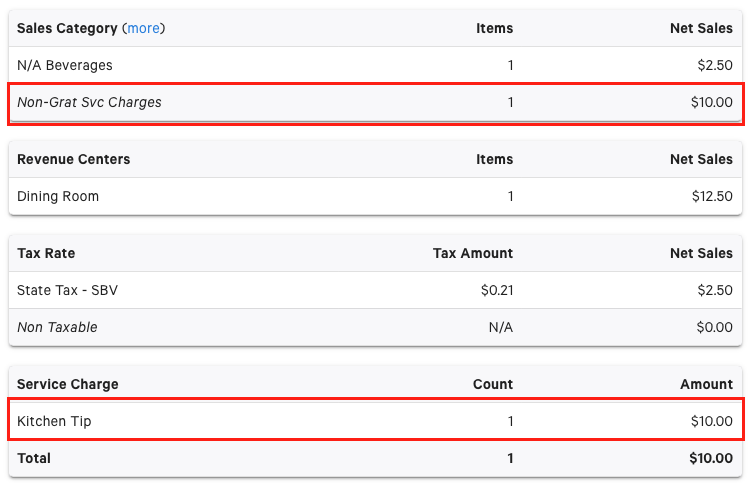
As the day goes on, this number will accrue on the Sales Summary report in the back office. When running a Sales Summary report, under the section labelled Service Charge you will see the total amount for the Kitchen Tip. It also hits the Sales Categories section as Non Grat SVC Charge:
Was this article helpful?
That’s Great!
Thank you for your feedback
Sorry! We couldn't be helpful
Thank you for your feedback
Feedback sent
We appreciate your effort and will try to fix the article